torstai 19. heinäkuuta 2018

iPhone Screen Lagging or Not Responding after iOS 12 Update?


Tip 1. If This Happens When Using Certain App

Firstly, to resolve the problem, you need to observe one thing. Check if your iPhone screen is not responding or getting lagging only when you use some particular apps. If there are only certain apps that are responsible in making your device lag, we would suggest you to delete those apps. Your iPhone will stop lagging when you remove those apps.
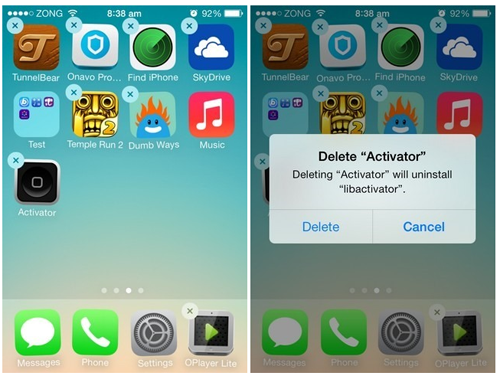
delete apps on iPhone

Tip 2. Force Restart iPhone

Hard rebooting or force restarting can help you when your iPhone screen is lagging after updating to iOS 12. Make sure to follow the steps as per your iPhone for better results. Here are the steps.
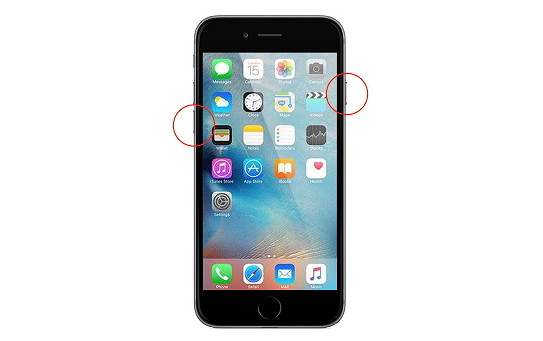
  • Press the 'Home' and 'Power' buttons altogether when having iPhone 6/6s and earlier models and press 'Power' and 'Volume Down' buttons if you are using iPhone 7/7 Plus. Release the buttons when Apple logo comes into sight.
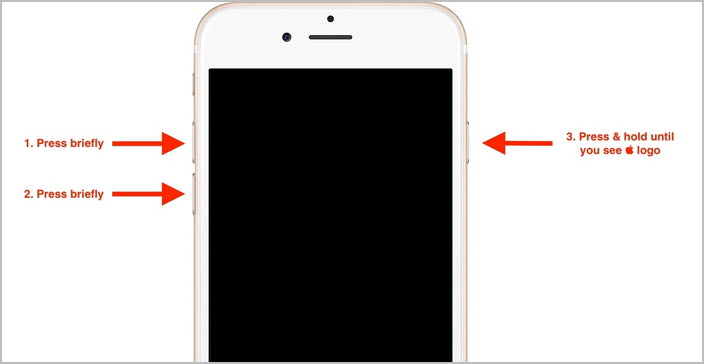
  • force restart iPhone 7
  • On having iPhone 8/8 Plus and X, quickly tap the 'Volume Up' button and then 'Volume Down' button. Now keep pushing the 'Power' button until Apple logo comes on the screen.
  • force reboot iPhone 8

Tip 3. Adjust 3D Touch

There are many users who found this solution helpful when their iPhone touch screen was lagging or not responding. You need to adjust the 3D touch in your device and see how magically it works. To perform this, here are the steps:
  • Open 'Settings' in your device and go to 'General'.
  • Tap on 'Accessibility and then tap '3D Touch'.
  • You can now adjust the 3D touch sensitivity from 'Light, 'Medium' and 'Firm'
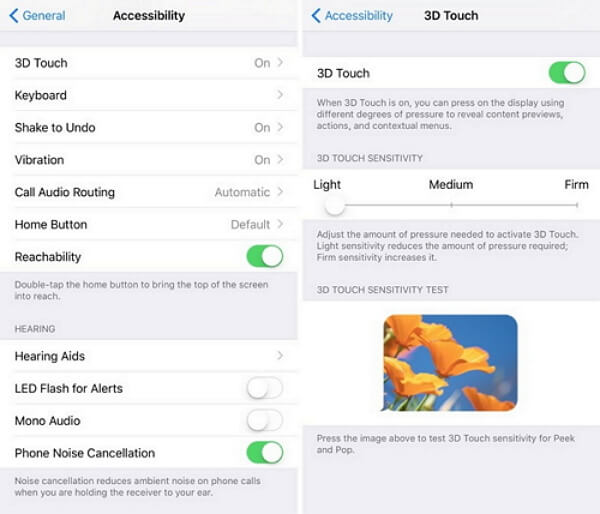
  • adjust 3D touch sensitivity
Jihosoft iPhone Backup Extractor Extract and recover all types of data from iPhone backup files, such as camera roll photos, videos, SMS, contacts, reminders, WhatsApp, and etc.
Gihosoft Free iPhone Data Recovery is a professional iPhone Data Recovery software to get back all your lost text message, photo, video, call history, note, contact and more from iPhone/iPad/iPod Touch.

Tip 4. Use Recovery Mode to Restore iPhone (Erase iPhone)

Restoring your iPhone via iTunes is also of help when iPhone screen is lagging or not responding after you update your iPhone to iOS 12. However, this method will get your iPhone erased and delete all the data on your iPhone. The steps for this process are:
  • Download the latest iTunes before beginning. Open it after that and connect your iPhone with the PC.
  • Now, put your device into recovery mode. For this, you'll have to follow the steps of force restarting your respective device. When your iPhone enters recovery mode, you will get to see an iTunes logo screen. If you want to know more about the steps, check this guide.
  • Now, you will get message that will notify you that iTunes has detected an iPhone in recovery mode. Hit on 'OK' and then click 'Restore'. The device will be restored and restart after that.
restore iPhone with iTunes

Tip 5. Backup iPhone & Then Check Touch Screen at Apple Store

If nothing worked, we doubt some hardware issue could be the reason behind iPhone screen lagging or not responding problem. To resolve such issue, we recommend you to first backup your iPhone, then get to the nearest Apple Store, and get your touch screen checked there. Hope this will work.

maanantai 16. heinäkuuta 2018

Apple Showcases New Emoji Arriving in iOS 12, macOS Mojave, and watchOS 5

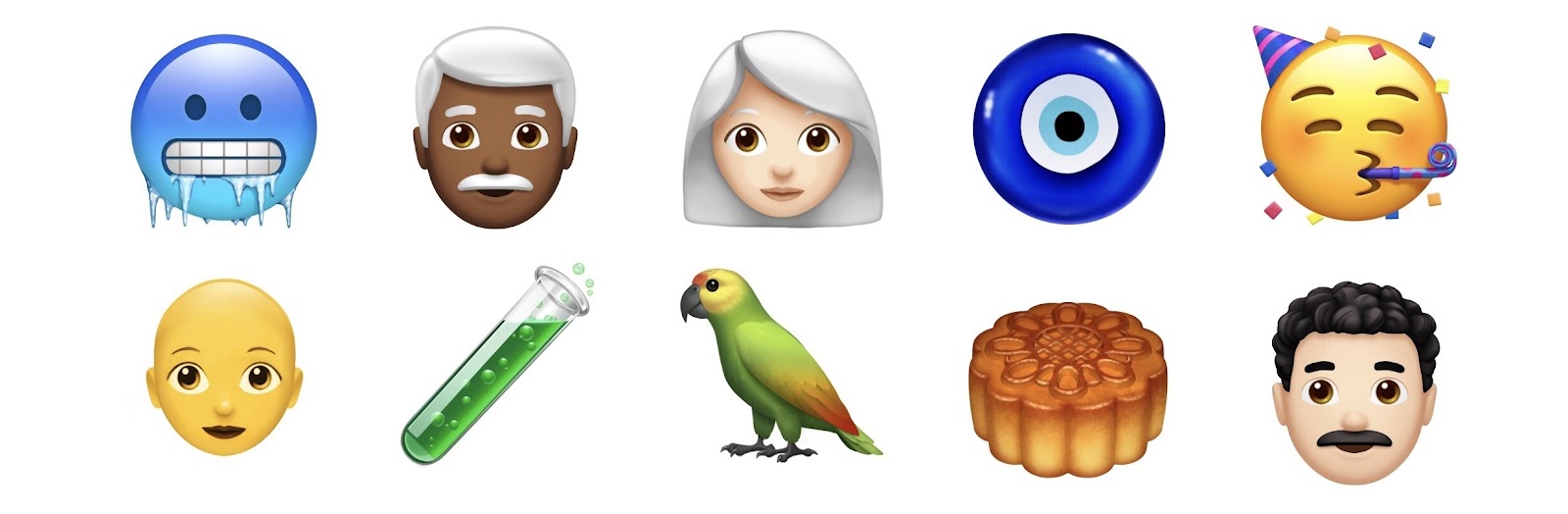
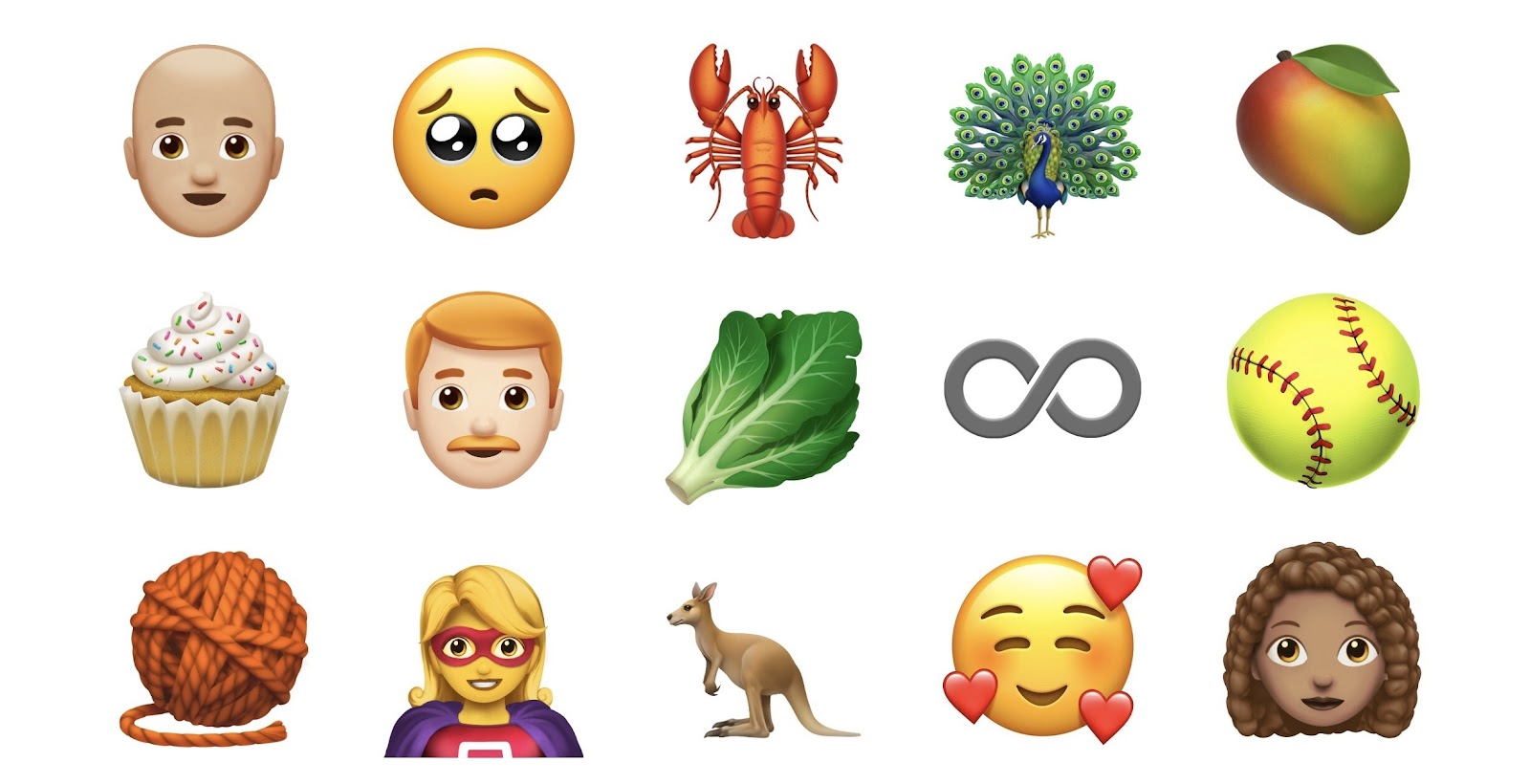
In celebration of World Emoji Day, Apple has released a preview of the new emoji arriving later this year in updates to iOS, macOS, and watchOS. There will be 157 new emoji in total, but today's preview only features a select few.
A centerpiece of the emoji additions this year will be improved diversity in hair options, including red hair, gray hair, curly hair, and bald.
Last year the new set of emoji was added with iOS 11.1 in October, while the year before that new emoji didn't arrive until iOS 10.2 in December. One way or another, it's only a matter of months until some version of iOS 12 puts the 157 new emoji in the hands of users.Jihosoft iPhone Backup Extractor Extract and recover all types of data from iPhone backup files, such as camera roll photos, videos, SMS, contacts, reminders, WhatsApp, and etc.


perjantai 13. heinäkuuta 2018

How to remove a single word from iPhone Auto-Correct Dictionary

Quite possible for an iPhone users is to accidently add a typo to dictionary which later creates troubles while typing. As you type correct work the auto-correct of iPhone will replace it with the wrongly added word. A iPhone 7 users with iOS 11 reported the issue as :

“So at one time or another I typed "tge" instead of "the" but I hit the little X when the iPhone suggested "the" (accident) and now the iPhone recognizes "tge" as a word and never corrects it.”


Fix 1: Do text replacement

Go to General>>Keyboard >>Text Replacement and look at the shortcuts if you scroll down. Click on Add new shortcut. Type the CORRECT word in the Phrase box, and type your misspelled word in the Shortcut box.


Fix 2: Do correction manually

You can also do the reverse of what you did to add it to the dictionary example

Typing yoo autocorrects it to "too" if you press the x then it adds yoo to the dictionary

Now to remove it type "too" and it will try to autocorrect to "yoo" now press the x and yoo is removed. Now typing yoo will autocorrect back to "too"


Fix 3: Reset the keyboard completely

This will reset the keyboard to orginal setting and will erase and personlaized keyboard shortcuts. Go to Settings>General>Reset>Reset Keyboard Dictionary.


If you accidentally deleted or lost videos on iPhone, first please check on the Recently Deleted folder. Alternatively, you can use the professional tool Gihosoft iPhone Recovery to recover deleted iPhone videos from Camera Roll or some apps.


torstai 5. heinäkuuta 2018

rootlessJB developer jailbreak released for iOS 11.0-11.3.1


As the iOS 11 jailbreak cycle comes to a close, developers are rushing to release jailbreak tools for iOS 11.3.1. Here’s a new concept jailbreak called rootlessJB that brings tweak support to iOS 11.3.1 and below.


Table of Contents


What is rootlessJB?


What’s missing from this jailbreak?


Compatibility


Download rootlessJB


Changelog


Requirements


How to install rootlessJB on iPhone/iPad


How to fix “failed to initialize SSH” error

WHAT IS ROOTLESSJB?


rootlessJB is a proof-of-concept jailbreak for iOS 11.0-11.3.1 with tweak support and SSH access. It is developed by independent developer Jake James.


Rootless jailbreak utilizes Ian Beer’s empty_list exploit and has a success rate of around 40%.


Essentially, it is a watered-down version of the Electra jailbreak toolkit beta that was released back in December. While that’s a good thing, a “rootless” jailbreak can only run Cydia tweaks that don’t require root access.


Once you install it on your device, you will be safely able to run the following tweaks –


BatteryPercentX


Cylinder


Dummypass


FloatyDock


HomeGesture


IconRenamer


LittleX


System Info


XBarRemover


Zeppelin


Note – Please do not try this jailbreak on your main Apple device unless you are a developer or a power user. Although the developer believes this tool doesn’t interfere with other tools, it can lead to infinite respring loops and kernel panics. Your best bet right now is to wait for Coolstar to release Electra jailbreak.
WHAT’S MISSING FROM THIS JAILBREAK?


This jailbreak was never meant to be a replacement for a full-fledged jailbreak. Here’s the complete list of all features that are either broken or not functional at the moment.


Cydia


PreferenceLoader and launchctl


Tweak support is limited only to the Messages app, SpringBoard, Home, and Clock


App-specific tweaks are non-functional
COMPATIBILITY


rootlessJB is compatible with all versions beginning from iOS 11.0 to iOS 11.3.1. But since iOS 11.0-11.1.2 versions already have a full-fledged jailbreak, this jailbreak becomes useless.


Therefore, it is ultimately useful only for the following versions.


11.2


11.2.1


11.2.2


11.2.5


11.2.6


11.3


11.3.1
DOWNLOAD ROOTLESSJB


IPA file
CHANGELOG


July 5 – Failed to initialize SSH error fixed.
REQUIREMENTS


iPhone, iPad, or iPod touch


iOS 11.2-11.3.1 firmware


A computer running macOS, Linux, or Windows


Cydia Impactor


Internet connection
HOW TO INSTALL ROOTLESSJB ON IPHONE/IPAD


Step 1 Download the IPA file given above to your computer.


Step 2 Open Cydia Impactor and drag this IPA file over to it. If you don’t have Impactor on your computer, you can grab it from this link.


Step 3 Enter your Apple ID email and password once it prompts you to enter your credentials.


Step 4 Once Apple’s servers authorize your Apple ID, the installation process will begin.


Step 5 Tap Jailbreak! to start the exploitation. Remember, SSH access will not work if you use the empty_list version (IPA file) and you must use Filza. If you continually experience exploit failure, close all running applications from the app switcher, turn on Airplane mode, disable Siri, and retry.


Step 6 Once it puts your device in jailbreak state, you can start installing tweaks using a file manager. Just follow this tutorial.


Yalu Jailbreak@Yalujb


Cylinder tweak running on iPhone 8 using rootlessJB (user - @x_vale_x). #rootless #jailbreak


6:32 PM - Jul 5, 2018


145


40 people are talking about this


Twitter Ads info and privacy
HOW TO FIX “FAILED TO INITIALIZE SSH” ERROR


If you get the “Failed to initialize SSH” and “Failed to launch jailbreakd” error, you must compile the rootlessJB XCode project yourself.


Sponsor Ads:


Gihosoft Free iPhone Data Recovery is a professional iPhone Data Recovery software to get back all your lost text message, photo, video, call history, note, contact and more from iPhone/iPad/iPod Touch. It offers a full solution to recover your lost data in different tough situations. Besides recovering data directly from iPhone, iPad and iPod touch, it also allows you to recover data from iCloud and iTunes backup files.


The reason why this happens is that Cydia Impactor signs the tar binary file and the bootstrap fails to extract properly. Jake is working on a fix and will hopefully release a new version soon.


If you run into issues and need help, just leave a comment below.

Rumor: AirPods 3 to Launch in Fall 2019, Feature Noise-Cancellation

A new supply-chain report says that Apple is working with suppliers and assemblers to launch the AirPods 3 by the end of this year. Compared...